I am convinced: the speed of decision-making and the precision of execution are what distinguish successful companies from those that remain stuck in place.
I believe that Google Ads Editor is not just a “Google Ads editor” but a strategic tool capable of radically changing the approach to advertising management. In this article I will show how to use Google Ads Editor for bulk campaign editing, minimizing errors, organizing team work, and optimizing ROI. Practice BUSINESS SITE confirms: proper implementation of this tool is the key to transparent results and confidence in every budget spent.
Google Ads Editor – what it is and why businesses need it?
Specialists at BUSINESS SITE use the Editor to speed up processes, especially when launching new products or scaling seasonal promotions.
Main scenarios for working with Google Ads Editor:
- Instant creation and editing of dozens of campaigns, ad groups, and keywords.
- Bulk updating of headlines, descriptions, URLs, banners, and extensions.
- Import and export of data via CSV and Excel for integration with internal systems or marketplaces (for example, Prom.ua, Rozetka).
- Offline editing of ad campaigns with subsequent synchronization of changes.
- Saving time on routine operations.
- Reduced risk of mistakes thanks to previewing and the ability to undo changes.
- Management flexibility: working without a constant internet connection, which is especially relevant for Ukrainian companies with distributed teams.
This is only a small part of why Google Ads Editor is indispensable for effective ad management and allows businesses to achieve better results.
Google Ads Editor – advantages for businesses
Google Ads Editor is a professional tool for fast and effective management of advertising campaigns that offers businesses a number of unique advantages compared to the standard web interface. It can significantly speed up routine operations, reduce the risk of errors, and increase flexibility: this is especially relevant for those who manage a large number of campaigns and strive for maximum productivity.
Let’s take a closer look at how bulk editing and other Google Ads Editor features help businesses save time and achieve better results.
Bulk editing – speed and efficiency
Bulk change capabilities include:
- Simultaneous editing of hundreds of keywords, bids, URLs and UTM tags.
- Quick replacement of banners in display campaigns.
- Instant updates of ad texts and language versions via filters.
Optimization of ROI is achieved by reducing time spent on routine tasks and increasing the accuracy of implementation of changes. Specialists at BUSINESS SITE recommend using bulk editing for regular promotions, seasonal updates and A/B testing.
Now let’s take a closer look at error protection and change control features.
Error protection and change control
Editor provides unique tools to prevent critical errors:
- Preview of all changes before publishing.
- Ability to undo actions (Undo, Revert) – both globally and selectively for individual campaigns.
- Special Google Ads Editor rules that warn about incorrect links, duplication, or structural errors in the account.
Google Ads Editor interface and navigation
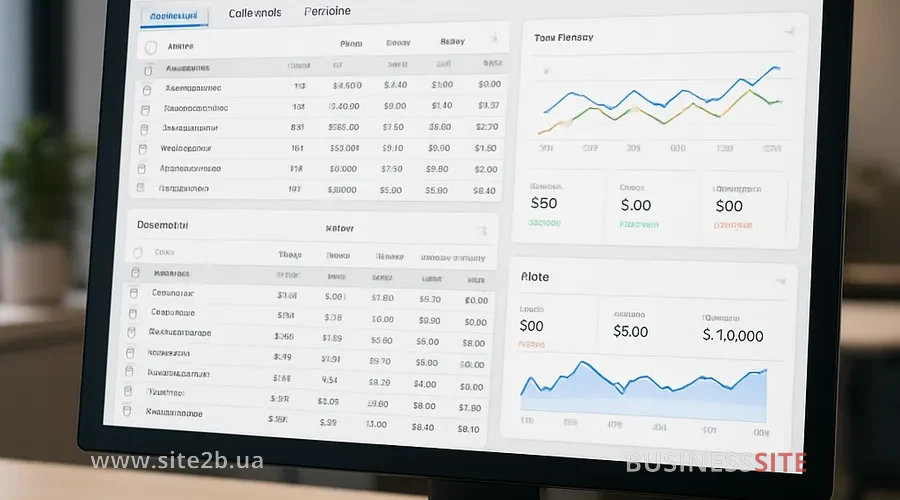
The interface and navigation of Google Ads Editor play a crucial role in organizing and managing advertising campaigns. Using this tool, users can efficiently navigate complex accounts and make bulk adjustments via an intuitive interface. Understanding the editor’s navigation helps marketing specialists quickly find the necessary features and optimize their workflow.
Account structure and statuses
Editor organizes the account as a tree: campaigns, ad groups, keywords, ads, and extensions. Each element has visual indicators:
- Bold font — changes not published.
- Gray color — the item is disabled.
- Icons indicating error status, warnings, or connection with the Asset library.
The toolbar allows quick switching between uploading, publishing changes, viewing statistics, and managing extensions.
How do I undo changes in Google Ads Editor?
Editor supports undoing changes at the level of individual campaigns. For example, if you made edits to a search and a display campaign, you can undo the changes in just one of them while keeping the others. Hotkeys (Ctrl+Z, Ctrl+Shift+Z) speed up the process, and the Revert function allows you to roll an item back to the last synchronization.
Mass editing: speeding up and optimizing work
Mass editing in Google Ads Editor is a key tool for speeding up and optimizing work with a large number of ad campaigns, ad groups and keywords. Thanks to the editor’s capabilities, specialists can quickly and accurately make changes to dozens of items at once, noticeably increasing efficiency and reducing routine operations. One of these powerful features that allows even finer control over bulk edits is the use of filters; they help instantly find the necessary elements for editing and avoid unnecessary actions.
How to use filters in Google Ads Editor
Examples of bulk changes on the site
Bulk updating of banners and texts is a regular task for online stores, especially when launching new collections or promotions. Editor allows you to accomplish this in minutes, saving resources and reducing the likelihood of errors.
Specifics of working with large accounts in Google Ads Editor
Working with large accounts requires a special approach:
- Export only the campaigns you need to save resources and speed up work.
- Use filters and display settings to organize the visibility of items.
- Hide outdated campaigns to avoid accidental changes.
How to synchronize data?
For successful work with advertising campaigns, it is important to correctly synchronize data between various tools and platforms. This helps avoid mistakes, increase the accuracy of analysis, and ensure stable transmission of information, which is especially relevant when working with Google Ads Editor and other services. Below we will look at the key points that will help you in this process.
How to avoid errors in Google Ads Editor
Recommendations BUSINESS SITE:
- Before starting work – download the latest data.
- After making changes – synchronize and check for conflicts.
- Publish changes only after checking all statuses and warnings.
Workflow of a PPC specialist
An effective workflow is built on discipline and automation:
- Clear sequence: data upload → make changes → synchronize → publish.
- Use keyboard shortcuts and templates to speed up routine tasks.
- Regularly check links between objects and extensions.
Managing extensions in Google Ads Editor
Managing extensions in Google Ads Editor can significantly simplify and speed up work with ad extensions. By using the editor’s convenient tools, you can easily add, edit, and optimize extensions to improve the effectiveness of your advertising campaigns. Below we will take a closer look at how to work with extensions in Google Ads Editor.
How to work with extensions in Google Ads Editor?
Bulk editing of extensions: risks and considerations
BUSINESS SITE specialists recommend regularly checking how many campaigns use an extension to avoid undesirable changes.
Limitations and Risks of Google Ads Editor
Google Ads Editor, despite its powerful tools for creating and editing advertising campaigns, has certain limitations and risks. When working with this tool, it is important to understand what capabilities it provides and how to use them safely to avoid mistakes and potential account suspensions.
In particular, it is important to realize that the tool may not always be ideally suited for analytical tasks, requiring supplementation with other Google Ads tools for full optimization of your campaigns.
What can be done in the Editor for analytics?
Data synchronization for collaborative work
Campaign type limitations
Editor does not support working with product lists for Performance Max campaigns, nor some features related to automatic targeting. Regular updates expand functionality, but limitations remain: this is important to consider when planning large-scale promotions.
Best practices for professionals
Google Ads Editor – an indispensable tool for scaling and optimizing advertising campaigns. Time savings, error minimization, transparency of team collaboration — all this becomes a reality with the proper implementation of the Editor. Synchronization discipline, naming standards, and regular change control: the foundation of safe and effective work.
The solutions we developed at BUSINESS SITE enable clients to confidently scale ad campaigns, optimize budgets, and achieve measurable results.
Master Google Ads Editor, and your ad campaigns will become more manageable, transparent, and effective.
Rate the article: