Imagine this situation: your website attracts traffic, the content is high-quality, but for some reason sales are not growing. Moreover, you notice that traffic has begun to decline. The cause often lies not in marketing, but in technical issues you don’t even suspect. According to research, technical errors on a website can lead to up to a 40% loss of traffic: this is a huge number that directly affects your revenue.
Over 14 years of work in web development and internet marketing I have seen how one unnoticed error in robots.txt or a misconfigured redirect could literally nullify SEO efforts. The team BUSINESS SITE audited more than 200 websites of Ukrainian companies, and in 85% of cases we found critical technical problems that directly affected search visibility and user behavior.
Technical website errors and their impact on traffic and conversions
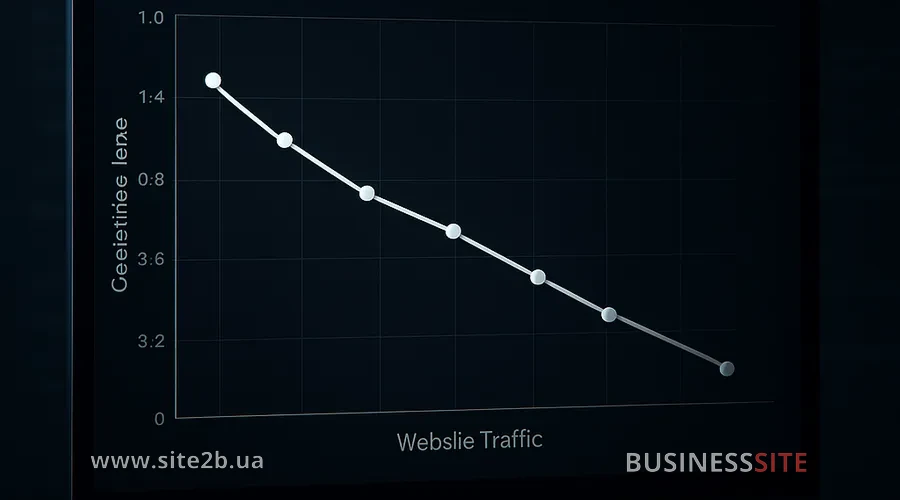
Search algorithms constantly crawl your site, trying to understand its structure, content and quality. If the crawler encounters errors, broken links, incorrect redirects, indexing problems, the algorithm spends resources handling them instead of indexing new content. This leads to reduced site visibility in search results.
According to our observations at BUSINESS SITE, sites with technical problems lose on average 25–40% of potential traffic. This is not an exaggeration: it is the result of data analysis from google search console and Yandex.Webmaster of our clients.
Top 10 technical mistakes that reduce traffic

Broken links and 404 and 500 errors
The problem is that broken links often go unnoticed. You deleted a product page but forgot to update the link to it in the catalog. Or you changed an article URL, but internal links remained old. The search engine crawler encounters these errors and starts lowering your site’s ranking.
To find broken links use Google Search Console: there is a “Coverage” section that shows all indexing errors. You can also use specialized crawlers such as Screaming Frog or Semrush. Check not only internal links but also incoming links from external sites.
Incorrect 301, 302 and JavaScript redirects
Redirects are a tool for sending users and search engine crawlers from one URL to another. But if used incorrectly, they become a trap for traffic.
Custom redirects via JavaScript are even worse. Many developers use them for convenience, but search engine crawlers often cannot process them. The page may load, but the crawler won’t understand where to redirect it and won’t pass link equity.
BUSINESS SITE specialists recommend always using 301 redirects when permanently moving content and checking redirects with tools that show the redirect chain. If you see a chain of three or more redirects in a row – that’s a problem. Each redirect loses part of the page’s “weight”.
Slow site loading: causes and solutions
I’ve seen sites that loaded in 8–10 seconds. You might think the content is good, SEO optimization is done, but traffic doesn’t grow. The reason was that 70% of the load time was spent loading ad network scripts and the support chat. When we optimized loading of those scripts and enabled caching, speed dropped to 2 seconds and traffic began to grow.
Check your site’s loading speed with PageSpeed Insights or GTmetrix. Pay attention to Core Web Vitals — these are metrics Google uses for ranking. Optimize images, minify CSS and JavaScript, configure caching at the server and browser level.
Errors in robots.txt and sitemap.xml
The robots.txt file is an instruction for search engine crawlers about which parts of the site they can scan and which they cannot. Sitemap.xml is a site map that helps crawlers quickly find all important pages.
Another common mistake is incorrect rules in robots.txt that block important pages or resources. For example, if you disallowed indexing of CSS and JavaScript files, the search crawler will not be able to render your page correctly and will not understand its content.
Sitemap.xml is often forgotten. If you added new pages but didn’t update the sitemap, the crawler may take a long time to notice those pages.
Check your robots.txt in Google Search Console. Make sure important pages and resources are not blocked. Update sitemap.xml every time you add or remove pages. Use tools to automatically generate sitemaps if your site is updated frequently.
Duplicate content and anchor over-optimization
Search engines don’t like duplicates. When a crawler encounters several identical pages, it doesn’t know which one to index and distributes link equity between them. This leads to loss of rankings for each of them.
At the same time there is the problem of anchor over-optimization. This is when you use exact-keyword anchor text in internal links too often. Search engines interpret this as manipulation and may impose a penalty.
BUSINESS SITE’s experience has shown that sites with duplicate content lose on average 15–20% of potential traffic. We audited one online store and found that 40% of product pages were duplicates. After consolidating content and setting canonical tags, traffic grew by 18%.
Server 5xx errors and failures caused by load
When a user encounters a 5xx error, they leave. When a search engine crawler encounters a 5xx error, it stops crawling and flags the page as unavailable. If 5xx errors occur frequently, the search engine may remove your site from the index entirely.
Set up uptime monitoring for your site. Use services that check site availability every minute and send alerts when outages occur. Check server logs and identify the causes of 5xx errors. If it’s overload, consider moving to more powerful hosting or using cloud solutions that automatically scale with increased load.
Mobile responsiveness issues
More than 60% of internet traffic comes from mobile devices. Google long ago switched to mobile-first indexing, which means the mobile version of your site is the primary version for search engines.
Common errors: text is too small and hard to read, buttons are placed too close together and hard to tap, pop-ups take up the whole screen and block content, online consultant or chat does not work properly on mobile devices.
BUSINESS SITE specialists recommend using the “Mobile-Friendly Test” tool in Google Search Console. It will show all issues with the mobile version. Test your site on real smartphones of different sizes and operating systems. Make sure all interactive elements work correctly.
Malfunctioning forms and API vulnerabilities
Form problems are often hidden: the submit button doesn’t respond to clicks, an input field doesn’t accept data, an error message doesn’t appear, the form is submitted but confirmation doesn’t arrive.
There are also security risks. If your API has vulnerabilities, this can lead to user data leaks, which will destroy trust and reputation. Weak admin passwords can lead to site hacking.
Test all forms on your site. Make sure they work in all browsers and on all devices. Use tools to check API security. Regularly update admin passwords and use two-factor authentication.
Errors in meta tags and hreflang
Meta tags are the information about a page that search engines see. Title and Description are the most important meta tags. They affect CTR (click-through rate) in search results and the understanding of the page content.
Errors in meta tags: Title too long or too short, Description does not describe the page content, identical Title and Description on different pages, lack of keywords in Title and Description.
Check all meta tags on your site. Make sure the Title contains the main keyword and is 50–60 characters long. The Description should be unique for each page and contain a call to action. If you have site versions in different languages, configure hreflang correctly.
Analytics issues and traffic filtering
Common errors: internal traffic (from employees) is not filtered and skews the data, goal tracking is configured incorrectly, UTM tags are used incorrectly, data is duplicated due to incorrect tracking code installation.
Set up filters in Google Analytics to exclude internal traffic. Use employee IP addresses or set a filter based on a custom user parameter. Check goal configuration and make sure they track the right actions. Use UTM tags correctly and consistently.
How to find and fix technical errors

Detection of technical errors is the first step to fixing them. There are several tools that will help you with this.
Google Search Console: this is the main tool for monitoring your site’s health. Here you will find information about indexing errors, mobile issues, and security errors. The “Coverage” section shows all indexing problems.
Yandex.Webmaster: the analogue of Google Search Console for Yandex. If your audience is in Ukraine and Russia, be sure to use this tool.
Specialized crawlers: Screaming Frog, Semrush, Ahrefs, SE Ranking. They crawl your entire site and identify all technical problems: broken links, duplicate content, meta tag errors, redirect issues.
Speed testing tools: PageSpeed Insights, GTmetrix, WebPageTest. They show why your site loads slowly and give recommendations for optimization.
The technical audit process looks like this:
- Check site availability; make sure the site loads and there are no 5xx errors.
- Check indexing; use Google Search Console to detect indexing errors.
- Scan the entire site; use specialized crawlers to identify all technical issues.
- Check loading speed; use PageSpeed Insights and GTmetrix.
- Check the mobile version; use the “Mobile-friendliness test” tool.
- Check security; make sure the site is protected against hacks and data leaks.
- Check analytics; ensure that data is being tracked correctly.
The BUSINESS SITE team conducts a technical site audit in three stages: resource diagnosis, identification of technical shortcomings, and assessment of content quality. We analyze the site’s structural logic, check search rankings, response speed, and mobile adaptation. This comprehensive approach allows us to identify all issues and develop a plan to address them.
How to prevent traffic loss due to errors
Set up uptime and server error monitoring. Use services that check your site’s availability every minute. If the site is unavailable, you should learn about it within minutes, not hours. Set up notifications by email or SMS.
Optimize loading speed. This is not a one-time task. As new content and functionality are added, speed can decline. Regularly check loading speed and optimize images, scripts, and styles.
Regularly update content and technical settings. Old content can contain broken links and outdated information. Update it regularly. Check robots.txt and sitemap every month.
Implement bot protection. Malicious bots can overload your server and slow down the site. Use tools to protect against bots, such as Cloudflare or ModSecurity.
Automate content updates. If you have a large product catalog or many pages, automate the update process. This will help avoid errors and save time.
Monitor bounce rate and other user behavior metrics. A high bounce rate may indicate technical issues or content problems. If the bounce rate rises, conduct a site audit.
Conduct a technical site audit every quarter. This will help identify new issues before they damage your traffic.
Conclusion

I am convinced that every website owner should understand the basics of technical SEO and regularly audit their site. This does not require deep programming knowledge – it’s enough to use the right tools and follow the procedure I described above.
Remember: your website is your main marketing tool. If it doesn’t work properly, all other promotion efforts are pointless. Keep your site healthy, and it will bring you steady traffic and revenue.
Rate the article: