Imagine: you launch dozens of campaigns, hundreds of ad groups, thousands of keywords. Every day — new edits, bid adjustments, adding UTM tags, updating creatives. In the web interface of Google Ads this turns into a routine that takes hours and increases the risk of errors. From our observations, even experienced marketers spend up to 40% of their working time on mechanical operations that can be automated.
That’s why I’m convinced: Google Ads Editor is not just an add-on, but a must-have tool for anyone who wants to scale advertising without losing control or quality. Over 14 years at BUSINESS SITE we have delivered more than 300 projects in digital marketing, from pharmaceutical companies to large online stores and banks. BUSINESS SITE’s practice confirms: bulk editing of ads through Ads Editor reduces time spent on routine tasks by 3–5×, and the risk of errors by multiples.
Mass editing ads in Google Ads Editor
Mass editing ads in Google Ads Editor allows you to quickly and efficiently apply changes across multiple campaigns, ads, or keywords at once. This significantly speeds up work and reduces the risk of errors, providing convenient and reliable management of advertising accounts. This approach is especially important when working with a large number of ads and the need for rapid adjustments.
How the auto-replace function works
The “Replace text” function (Ctrl+H): a basic but powerful tool. With it you can mass-change URLs, ad copy, headlines, descriptions, and keywords. Important: select specific fields and levels (campaign, ad group, ad) so you don’t affect anything unnecessary. For example, for the online store “Akon” we mass-updated UTM tags in all campaigns in 15 minutes instead of 2 hours of manual work.
- Hotkeys: Ctrl+H: replace text, Ctrl+F: search. These shortcuts speed up work dramatically.
- Search whole words: Enable the “Whole words only” option to avoid accidental replacements inside other words.
- Change case: Mass-convert headlines and descriptions to a unified style — this affects perception and CTR.
- Working with duplicates: Use “Apply changes to duplicates” so you don’t miss repeating elements.
Practical example
Mass bid changes in Google Ads – how to optimize campaigns
Mass bid changes in Google Ads: an important tool for effective budget management and improving the performance of advertising campaigns. Understanding how to properly optimize bids in large volumes allows you to quickly adapt to market changes, improve conversion metrics and make the most of automation potential.
How does it work?
Select the necessary campaigns, groups or keywords, set a new bid or percentage change: and apply it to all selected items. Especially useful for new keywords without statistics: you can quickly set starting bids based on average values in the niche.
Setting limits on the website
- Bid limits: Set minimum and maximum values to avoid sharp budget spikes.
- Automation: Use mass changes for periodic optimization of bids based on analytics.
- Risks: Always make a backup before mass changes. Double-check the selected items.
Practical example
Word formulas in Google Ads Editor
Word-formulas in Google Ads Editor are a tool that allows you to quickly and efficiently automate various operations when creating and editing advertising campaigns. By using word-formulas, users can bulk-insert or replace text for specific elements such as the campaign name, ad group, or keywords, which significantly simplifies and speeds up the process of managing advertisements. This tool is especially useful for optimizing ad content and synchronizing it with different campaign elements.
What are word formulas?
Why does it work?
Practical usage examples
- Headlines: «[keyword]: fast delivery Nova Poshta»
- Descriptions: «Order [adgroup] online with a guarantee»
- URL: example.com/[campaign]-[keyword]
How to implement: step-by-step instructions
- In Ads Editor, when creating or editing an ad, insert the required formula into the text.
- Check the result in the preview.
- Apply the changes to all necessary ads via bulk editing.
UTM Automation in Google Ads Editor for ROI
UTM automation in Google Ads Editor significantly simplifies and speeds up the process of adding tags to advertising links, which is important for accurate measurement and improving ROI. This approach helps systematically collect data on campaign performance and optimize advertising budgets.
How to automate processes
- Text replacement: Find all URLs without tags and add the required parameters.
- Import via CSV: Prepare a file with updated URLs and upload it to the editor.
How do you integrate word formulas?
Practical example
Eliminating duplicate keywords in Google Ads Editor
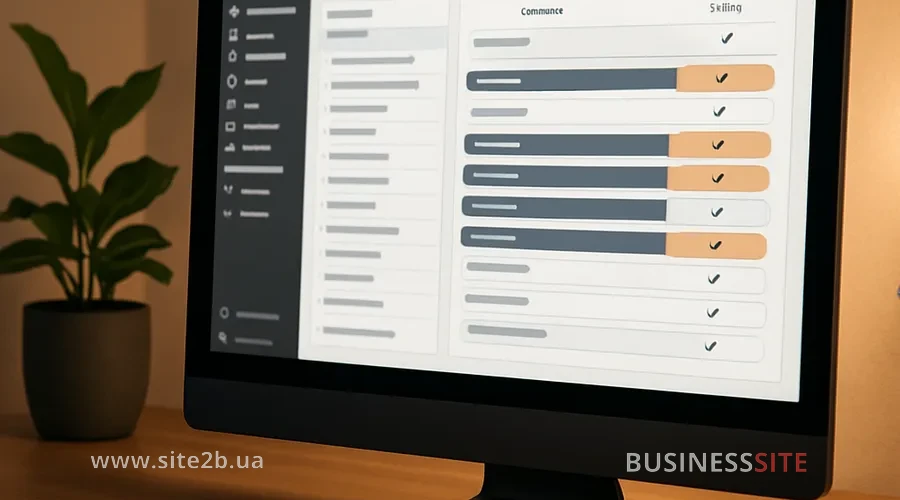
Eliminating duplicate keywords in Google Ads Editor is the first step toward an effective ad account structure and transparent control of ad spend. Duplicate keywords not only complicate analysis and campaign optimization, but also lead to internal competition, increasing click costs and reducing overall ad effectiveness.
How to find and fix errors
- Find duplicates: In Ads Editor, use Ctrl+Shift+D to search for repeated keywords.
- Bulk removal: Select the duplicates and delete or pause them.
- Regular monitoring: Include duplicate checks in your monthly campaign audit.
Practical example
Creating campaigns in Google Ads Editor
Creating campaigns in Google Ads Editor – a convenient and effective way to manage advertising, allowing you to make bulk changes and speed up setup. To optimize the process, it is important to understand why default settings are needed and how to use them correctly when launching new campaigns.
Why default settings are necessary and what they are used for
How to set up: step-by-step instructions
- Campaign templates: Create a template with the required parameters and use it for new campaigns.
- Bulk editing: After creating campaigns, check and, if necessary, adjust the parameters using bulk editing.
- Standardization: For each campaign type (Search, RSYA, Performance Max) use separate templates.
Practical example
Bulk editing of ad schedules in Google Ads Editor
Bulk editing of ad schedules in Google Ads Editor is a key aspect of effectively managing advertising campaigns. It allows you to quickly and accurately adjust the hours and days when ads are shown, which is especially important for businesses with limited call center hours or a specific work schedule. A properly configured ad schedule can significantly improve ad performance.
How to automate processes
- Copying the shell: Use Ctrl+Shift+C to copy schedule settings from one campaign to others.
- Bulk application: Select the required campaigns and apply the copied settings.
- Optimization: Analyze data on conversion times and adjust the schedule for maximum effectiveness.
Practical example
Bulk adding of extensions in Google Ads Editor
Bulk adding of extensions in Google Ads Editor is a powerful tool that allows advertisers to quickly and efficiently manage large volumes of data in their ad campaigns. By using this tool, you can save time and effort by automating the process of adding extensions, such as sitelinks and callouts, to multiple ads or groups at once.
How to automate tasks
- Import via CSV: Prepare a file with extensions and upload it to the editor.
- Bulk application: Select the desired campaigns and apply the extensions.
- Error checking: Make sure extension URLs are not duplicated and comply with Google’s policy.
Example of a practical use case
Converting Google Ads to responsive ads
Converting Google Ads to responsive ads is a step toward a more effective advertising strategy. Responsive ads are able to adapt to different devices and formats, which can significantly increase click-through rates and audience reach. Moving to the new formats can substantially improve campaign performance and increase conversions.
How to convert
- Export to CSV: Export standard ads from the editor.
- Conversion: In Excel, prepare the data for the new formats (headlines, descriptions, paths).
- Import: Upload the updated ads back into the editor.
Practical examples
Boosting efficiency with Google Ads Editor
Google Ads Editor is not just a tool for “quick edits”, but a full platform for scaling and automating advertising. At BUSINESS SITE we’ve found that bulk editing, using word-formulas, automating UTM tags, regular duplicate audits, and transitioning to new ad formats are not options but essential elements of modern digital marketing.
Questions about the article
Use bulk editing, templates and the import/export of data via CSV files.
Apply performance filters, use bulk bid changes and automated optimization rules.
Set up a tracking template at the account or campaign level so UTM tags are automatically added to all ads.
Use the built-in “Find duplicate keywords” tool and remove overlaps between ad groups.
Set the campaign type, bidding strategy, language, geo-targeting and ad schedule in the default template.
Select the campaign with the desired schedule, copy the settings and paste them into other campaigns using the “Paste settings” function.
Ctrl+C/V for copying items, Ctrl+Shift+H for bulk find and replace, filters by status and labels for quick selection.
Create backups, use change preview beforehand and check logs before publishing.
Rate the article: